The Privacy Settings Worth Changing on Every Device You Own
Maxine Duran
August 28, 2026
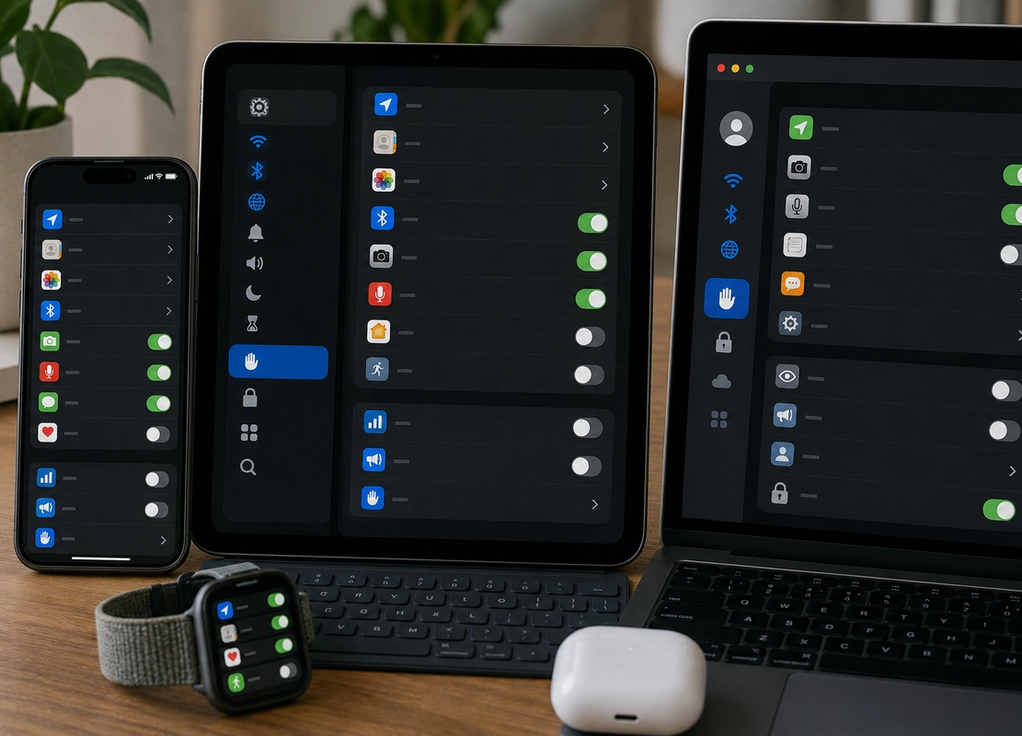
Most devices are remarkably easy to start using. Sign in, accept a few prompts, connect to Wi-Fi, and within minutes everything is working. The problem is that convenience often means leaving dozens of permissions and data-sharing settings exactly as they were configured by default. Over time, apps accumulate access to your location, microphone, camera, contacts, photos, and other information they may no longer need. You do not have to become a privacy expert or disable every useful feature to improve the situation. A short review of a few important settings can significantly reduce unnecessary access while allowing your phone, computer, tablet, and other devices to work normally.
Review location access
Location is useful for navigation, weather, transportation, delivery services, and other apps that genuinely need to know where you are. But many applications request location access even when it is not essential to their main function. Open your device’s privacy settings and review which apps can access your location. Where the operating system allows it, choose access only while using the app rather than permanent background access. Some devices also allow you to provide an approximate location instead of your precise position. That may be enough for services such as weather or general local recommendations. Pay particular attention to apps you rarely use. A service you downloaded for one trip two years ago does not necessarily need continued access to your location today.
Check your microphone and camera permissions
Video calling, photography, voice messaging, and scanning apps clearly need camera or microphone access at certain times. Many other applications do not. Review these permissions individually and remove access where you cannot identify a good reason for it. Modern operating systems often display an indicator when the microphone or camera is actively being used, so learn what that symbol looks like on your devices. If an unexpected app appears to be accessing either one, investigate its permissions. You can always restore access later if disabling it prevents a feature you actually use. Privacy settings do not have to be permanent decisions; they can be adjusted as your needs change.
Limit access to your photos and contacts
An app asking for your photo library does not always need access to every photograph you have ever taken. Many devices now allow you to grant access only to selected photos. Use that option when an app only needs an occasional image upload. Contact access deserves similar attention. Social, messaging, shopping, and other applications may request your address book to help find friends or simplify sharing, but providing it can expose information about other people as well as yourself. If syncing contacts is not important to how you use the service, consider leaving the permission disabled. Periodically reviewing these permissions is particularly useful because an app you trusted with broad access years ago may no longer need it.
Reduce unnecessary tracking and personalization
Many apps, websites, smart televisions, and other connected devices collect information about how you use them, often to personalize content, measure engagement, or support advertising. Look through privacy, advertising, and personalization settings and disable forms of tracking you do not find useful. The exact options differ between devices and services, but you may see settings related to personalized advertising, activity tracking, diagnostic data, viewing information, or sharing usage data. Turning these off will not make you invisible online, and some data collection may still be necessary for a service to function. The goal is not perfect anonymity. It is reducing optional collection that provides little value to you.
Strengthen your lock screen and account security
Privacy settings matter much less if someone can easily unlock your device or take over the account connected to it. Use a strong passcode rather than a simple pattern or easily guessed number, and enable biometric unlocking where you are comfortable using it. Turn on multi-factor authentication for important accounts, especially email, cloud storage, financial services, and the main account connected to your phone or computer. Also review what appears on your lock screen. Message previews, authentication codes, calendar details, and other notifications can reveal information even when the device itself remains locked. You can usually hide sensitive notification content until the phone has been unlocked.
Delete permissions and accounts you no longer need
Digital clutter can become a privacy problem. Old apps may retain permissions, unused browser extensions can continue running, and accounts created years ago may still contain personal information. Every few months, look through what is installed and remove software you no longer use. Check browser extensions particularly carefully because they can sometimes have broad access to browsing activity. It is also worth reviewing connected devices and active sessions on important accounts. If you see an old phone, computer, or session you no longer recognize or use, sign it out. Software updates matter too. Keeping operating systems, browsers, and apps current helps ensure that known security vulnerabilities receive available fixes.
Privacy does not require turning every device into a locked-down machine that is frustrating to use. It is mostly about being more deliberate about access. Give apps the information they need when they need it, rather than permanent access to everything by default. Review location, camera, microphone, photos, contacts, tracking, notifications, and account security periodically. The settings themselves may take only a few minutes to change. The important part is remembering that permission should not automatically mean permission forever.